Patch Management Release 3.14
May 04, 2026
Rule-Based Automated Asset Isolation 
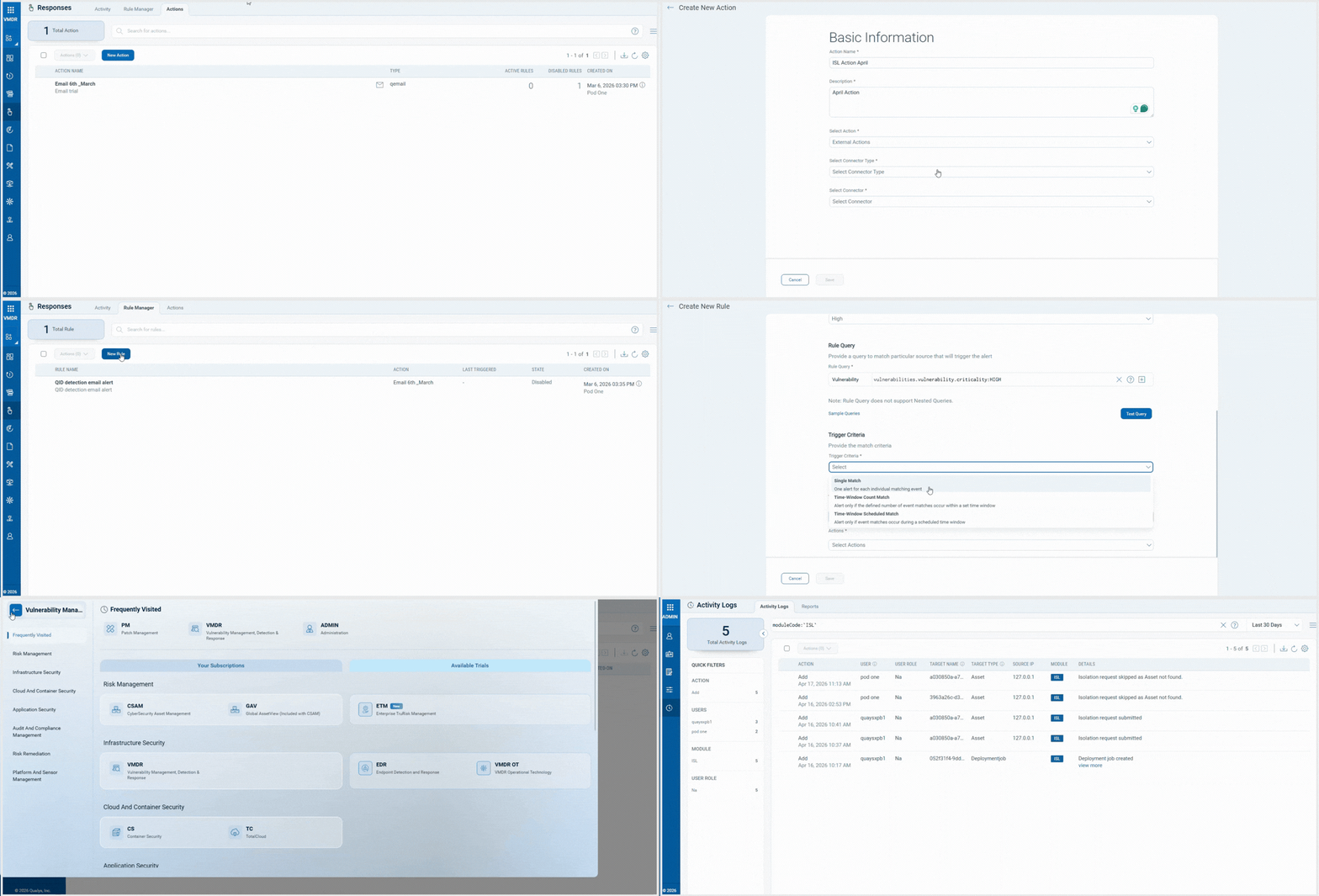
Automate asset isolation efficiently using the rule-based triggers in Vulnerability Management and Detection Response (VMDR). This functionality helps you to reduce manual effort, define the condition once and instantly isolate at-risk assets, accelerating response time. You can now group your most critical assets and automatically isolate them when non-compliance or misconfiguration is detected, helping strengthen your organization’s security posture.
To automate asset isolation, you must:
- Create external action using the Isolate Asset with TruRisk Eliminate connector.
- Create a rule, add the action to it, and set the trigger to a single match for the vulnerability QQL query you specify.
The VM scan checks the rule, and if an eligible asset that meets the set criterion and is activated for Isolation, it is then isolated automatically. For more information, see Automate Asset Isolation.
The following types of activity logs are generated in the Administration > Activity Logs tab:
- ISL request submitted: This log is generated when the targeted asset is isolated.
- Isolation request skipped as Asset not found: This log is generated when the asset for which the rule is triggered is not eligible for isolation.
Acquired From Vendor Patch Support 
The vendor-acquired patches are now available on the VMDR > Vulnerabilities tab and you can now directly create a Remediation job including these patches from VMDR. Both enabled and non-enabled vendor-acquired patches are visible, allowing you to view patch coverage directly in VMDR.
Earlier, these patches were not available on the VMDR > Vulnerabilities tab, and had to be included in the job only through Patch Management application. You can use the QQL token finding.isQualysPatchable: True on the VMDR > Vulnerabilities to fetch all the patches including automatic and vendor-acquired patches.
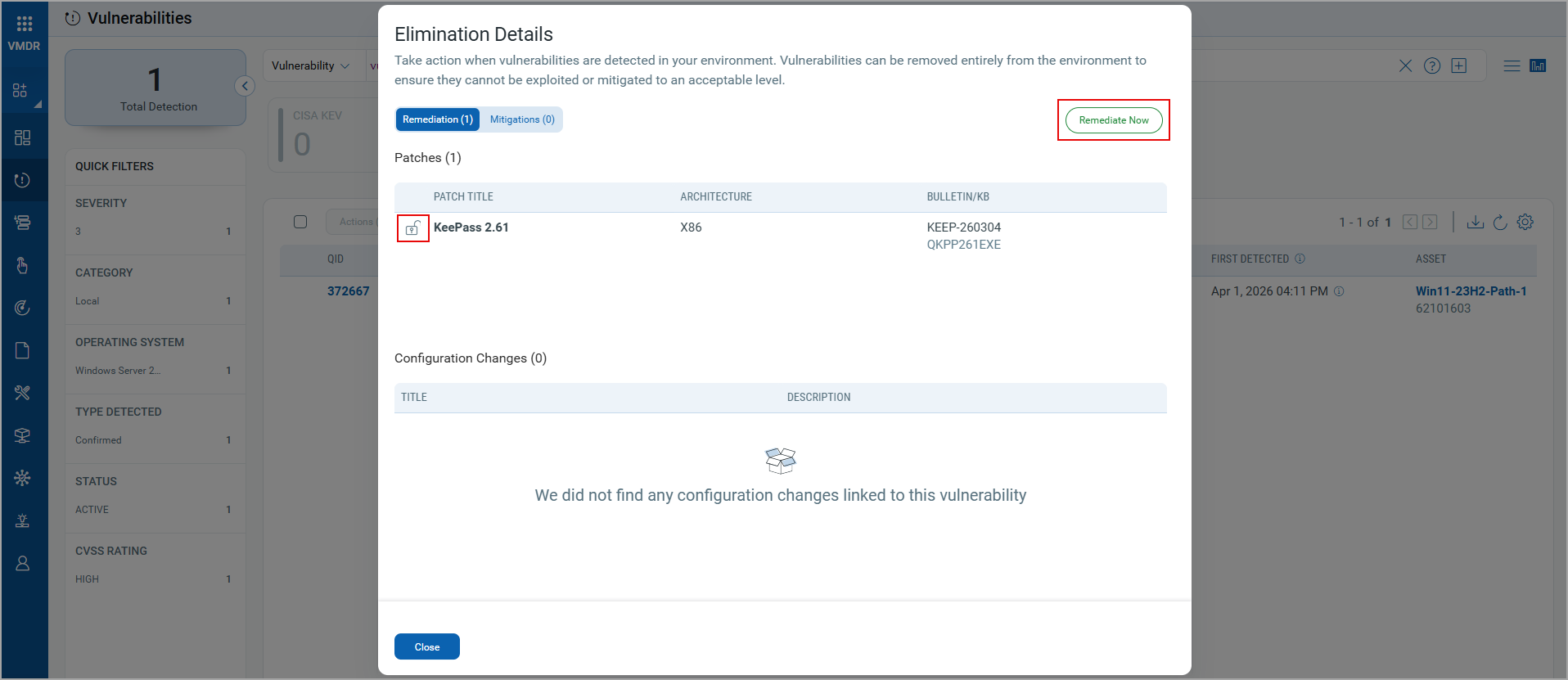
To create a Remediation job, the vendor-acquired patches must be enabled. In the following image, the unlock icon indicates the patch is enabled. For more information, see Enable Vendor Acquired Patches.
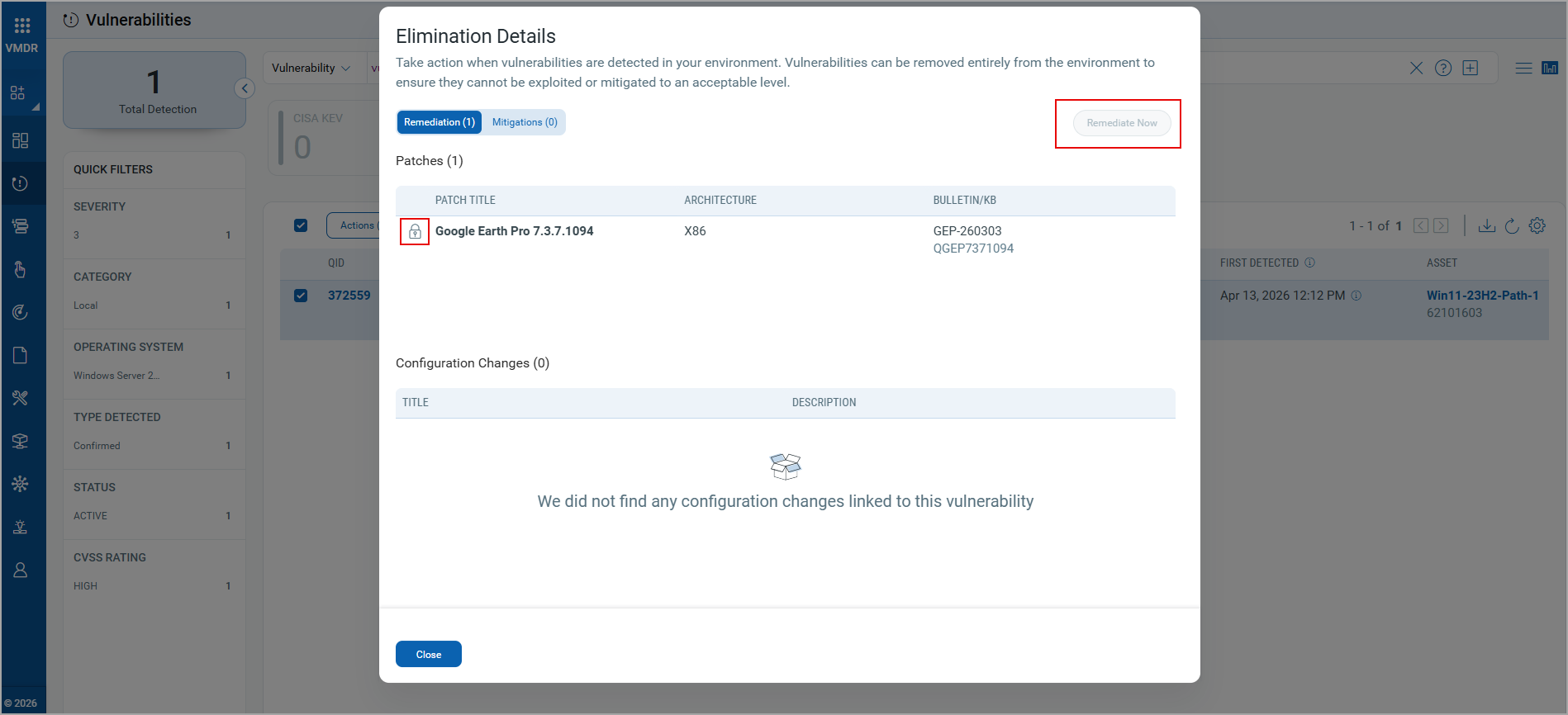
If you select the non-enabled patches indicated by the lock icon, the Remediate Now option is disabled, as shown in the following image.
Support for Linux ARM Architecture Rollback Patching
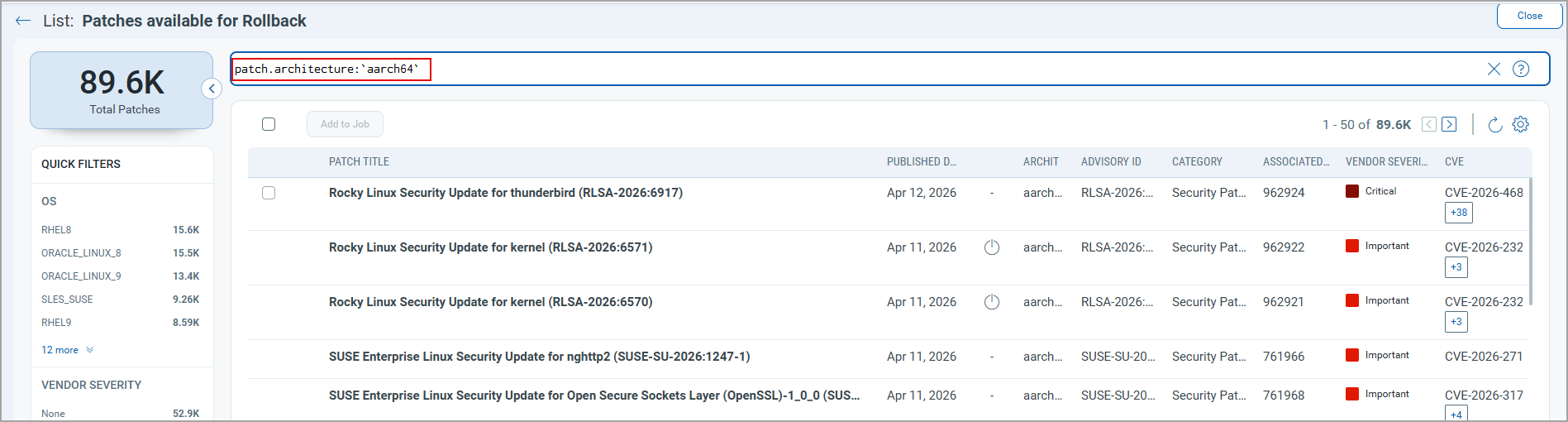
You can now perform patch rollbacks for Linux ARM architecture assets. To include the Linux ARM patches in a rollback job, in the Create Linux Rollback Job workflow, go to the Select Patches tab, use the QQL token patch.architecture: aarch64 to filter the ARM patches.
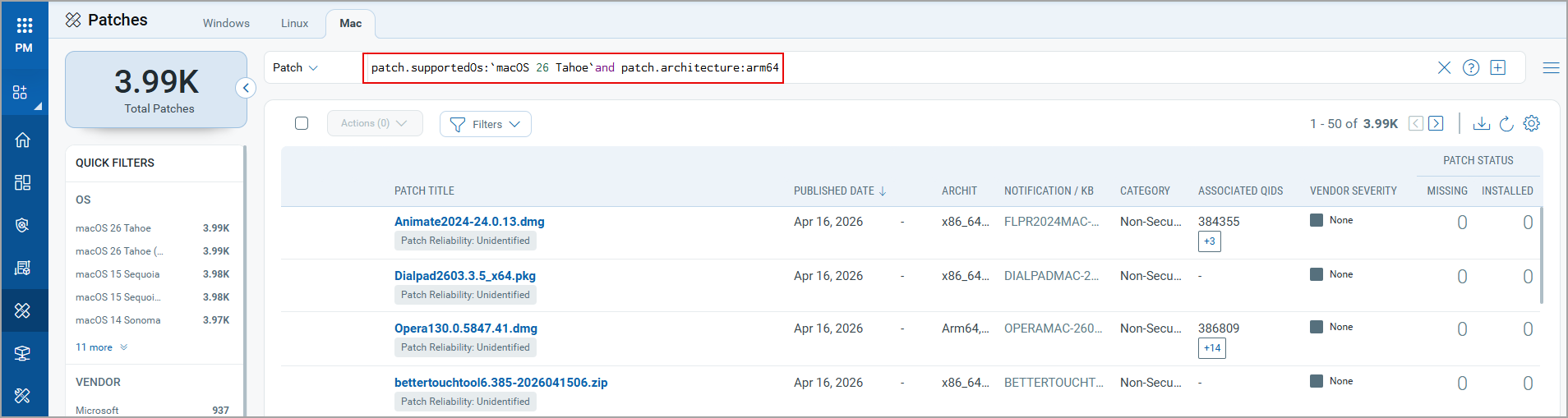
Patching Support for Mac 26 on M5 Architecture
You can now patch Mac 26 assets running on M5 architecture. You can filter these patches on the Patches listing page, using the QQL token patch.supportedOs: `macOS 26 Tahoe`and patch.architecture: arm64`.
New QQL Tokens
Refer to the following table to learn more about the new token in this release.
| Tab | Token (New) | Usage |
|---|---|---|
|
job.createdDate | To find the patch deployment jobs created as per the specified date or date range. |
Updated Tokens
Refer to the following table to learn more about the updated tokens in this release.
Only the new tokens are displayed in the autosuggestion in the search bars within the UI. However, if you type the old token name manually, the QQL query still works. The old tokens do not appear in the autosuggestions on the UI.
The syntax and usage remain the same as for the old tokens.
| Tab | Old Token | New Token |
|---|---|---|
|
agent.id | qualys.agent.id |
|
sensor.activatedForModules | qualys.activatedForModules |
|
asset.lastLoggedOnUser | compute.lastLoggedOnUser |
|
asset.timezone | compute.timezone |
Issues Addressed
The following reported and notable customer issues are fixed in this release.
| Component/Category | Description |
|---|---|
| PM - Job Linux | An issue occurred in which, although email notifications were set in the Linux deployment job, the emails for Execution Started and Execution Completed notification were not received. This issue is now fixed, and notification emails are received successfully. |
| PM - Job Windows | An issue occurred where if a deployment job is scheduled at a particular time that fell under the Daylight Saving Time (DST) transition gap, the job was stuck in the Prepared state. This issue is now resolved, and the job runs at the scheduled time without getting stuck. |
| PM - Job Windows | An issue occurred when the acquired vendor patches from the VMDR > Vulnerabilities tab were used to create a remediation job, an error occurred while saving the job, and job creation failed. This issue is now resolved, and we support creating remediation jobs for Vendor Acquired patches from the VMDR > Vulnerabilities tab. |
| PM - Linux_Content | An issue occurred in which the patch published date for Linux patches was shown incorrectly on the Patch > View Details page. This issue is now fixed and the published date is correctly displayed. |
| PM - Job Windows | An issue was observed in which the Windows default deployment job did not trigger for the newly added asset. This issue is now resolved, and the default job runs on the newly added asset. |
| PM - Assets | An issue was observed where the missing patches were not displayed on the VMDR > Vulnerabilities > Actions > View Missing Patches. This issue is now fixed and all the missing patches are displayed. |
| PM - UI | An issue occurred in which the failed deployment job actions, the pre and post-actions results were not displayed in the Job Results report. This issue is now fixed, and the job action results are displayed in the report. |
API Release Updates
For more details on the API updates for this release, see Patch Management API Release 3.14.